

What are actions?
An action is a button that appears in the Forest interface. When clicked, it triggers custom logic - from simple field updates to more complex business logic. Actions let you:- Execute business operations (approve orders, ban users, send invoices)
- Integrate with external services (Stripe, SendGrid, Slack)
- Process data (bulk updates, exports, transformations)
- Implement approval processes
- Trigger webhooks to third-party tools
Where actions appear
Actions are available throughout Forest:-
Collections
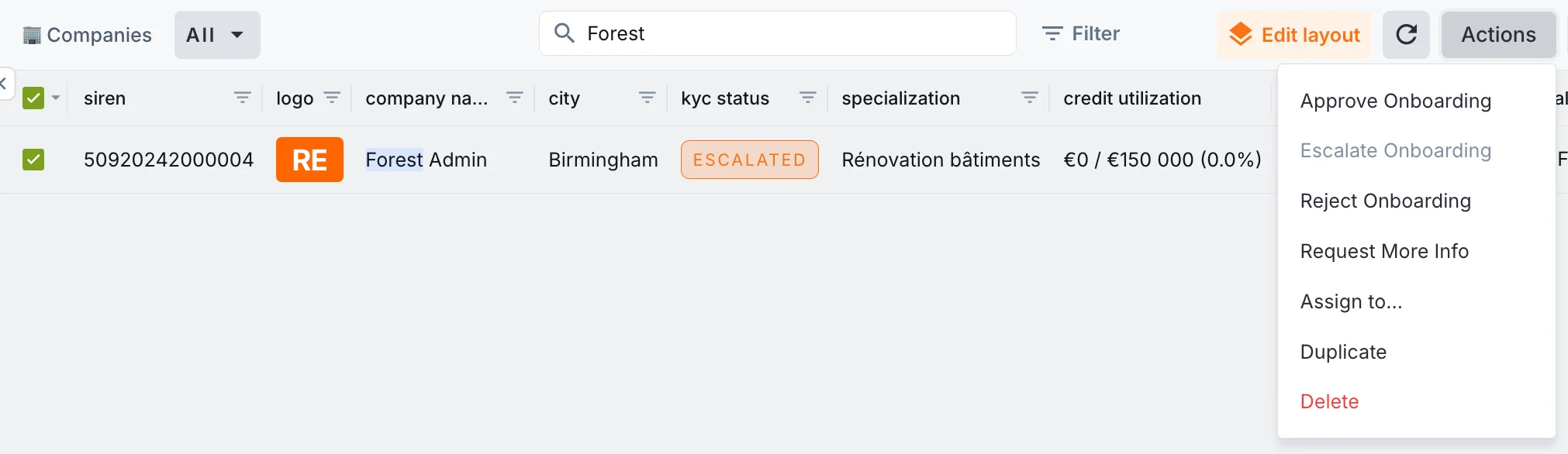
- Table view: Actions on records in table and detail views (single, bulk, or global actions)
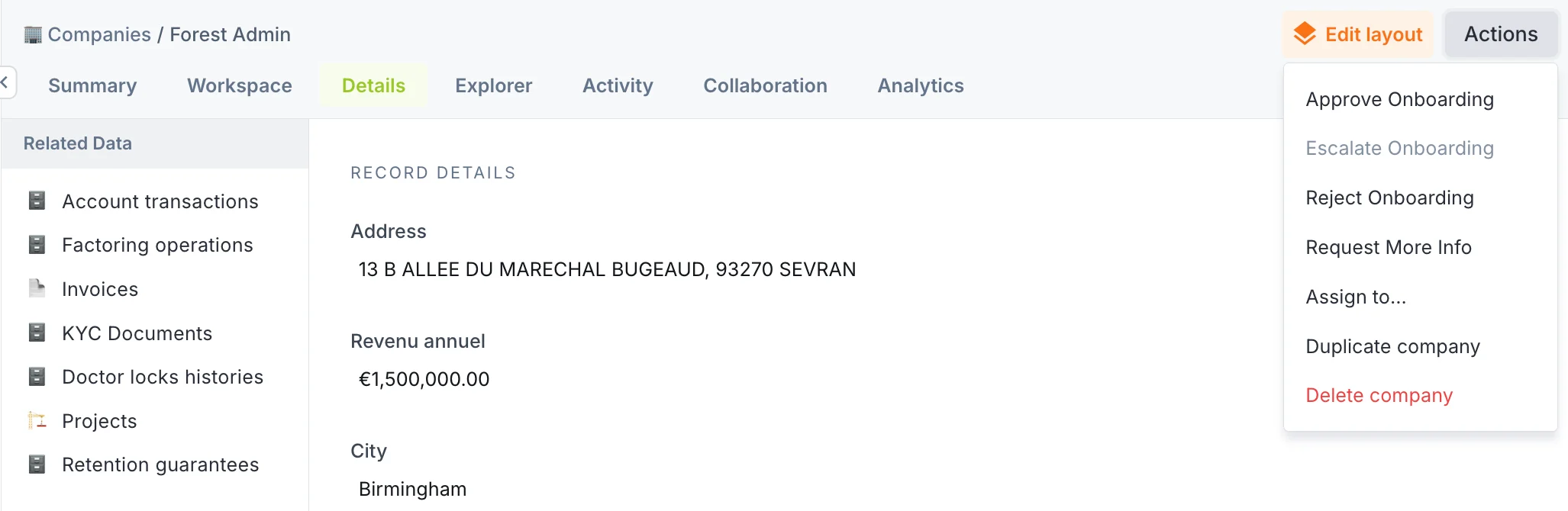
- Details tab: Trigger an Action on the selected record, from its Details tab
- Summary tab: Trigger an Action from a record’s summary view, when configured
- Workspaces - learn more here
- Workflows - learn more here
Built-in actions
Forest provides native actions out-of-the-box:
These work automatically with your data structure and require no configuration.
The Assign to action is part of Forest’s Inbox feature for task management.
Custom actions
Beyond built-in actions, create your own custom actions with custom code in your back-end:- Complex business logic
- Dynamic forms: Forms that adapt to user input
- External integrations: Deep API integrations
- File generation: Create PDFs, CSVs, reports
- Custom result types: HTML responses, redirects, downloads
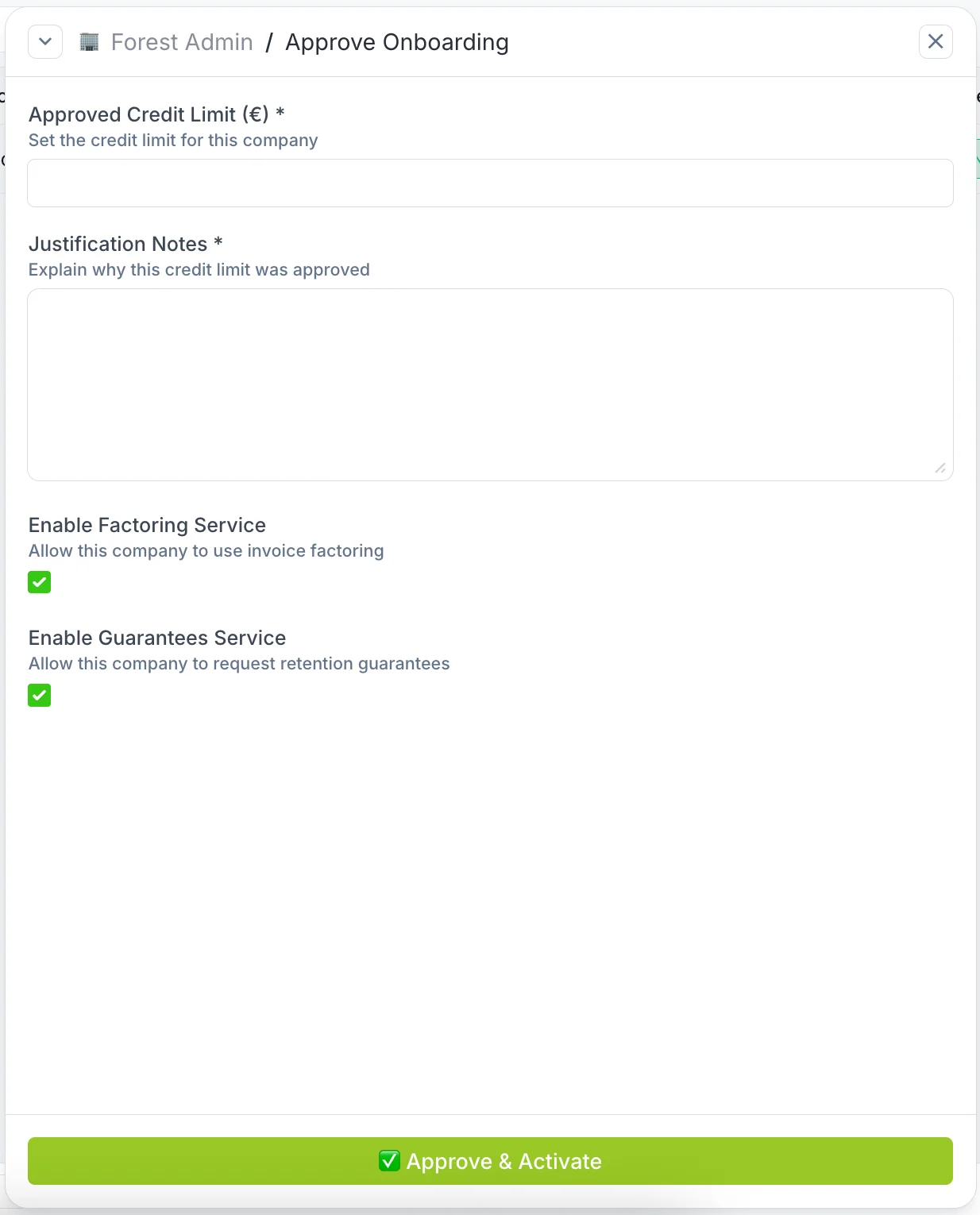
Code-based actions
Build actions with code
Action scopes
Every action has a scope that defines when it’s available:Action types
You can customize the appearance of action buttons to match their purpose, via the Collection settings: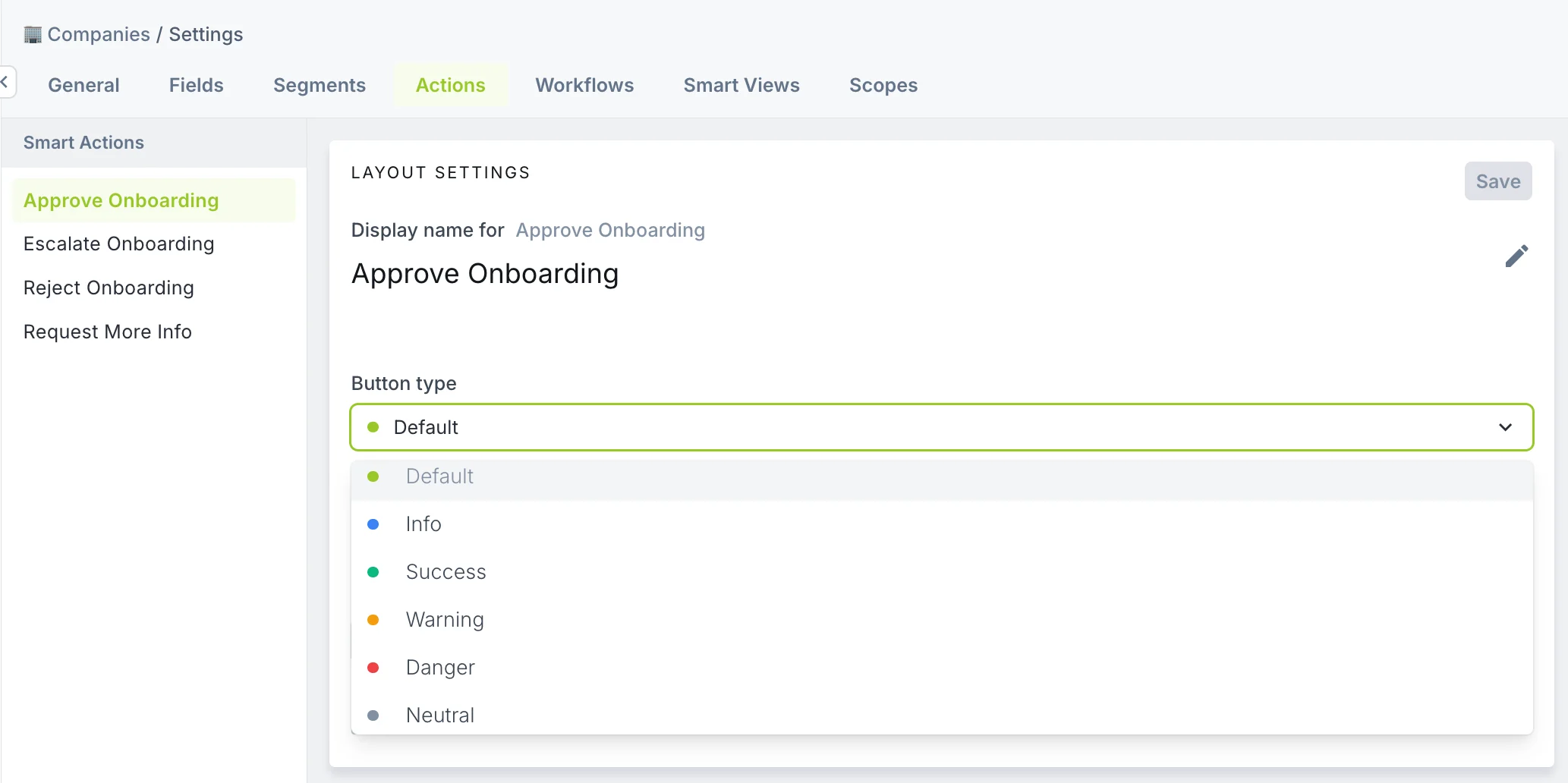
Action visibility
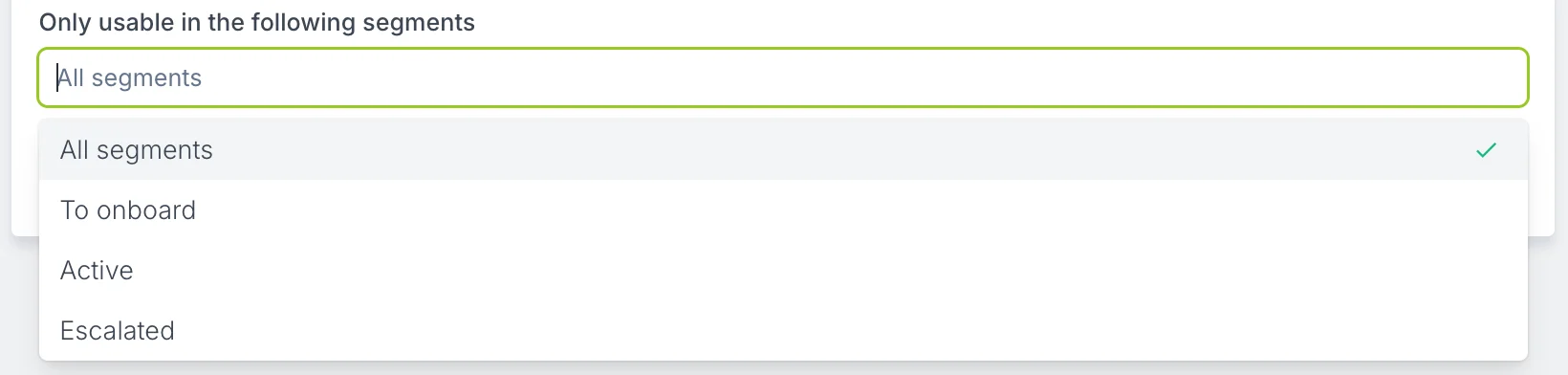
Control when and where actions appear in your interface. Role-based permissions determine which users can see and execute specific actions. Configure permissions per team and role to restrict sensitive operations. See Roles & permissions for configuration.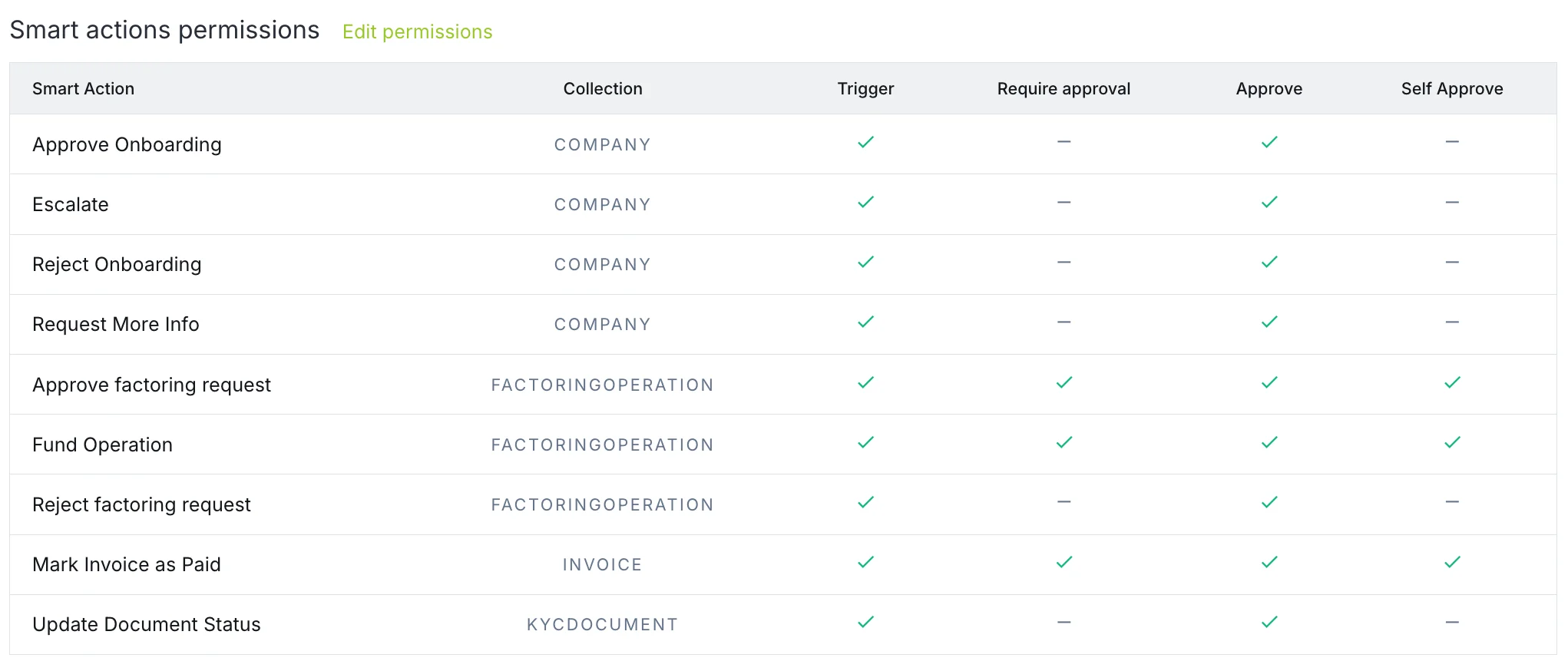
What actions enable
Approval workflows
Actions integrate with Forest’s approval system. Require manager approval before execution, track approval history, and maintain an audit trail of who approved what.Approval workflows
Learn about approval workflows
Role-based permissions
Control who can execute actions by configuring permissions per team and role. Show actions only when conditions are met and restrict sensitive operations.Roles & permissions
Configure action permissions